Not every computer you work on is one you can install software on. Work laptops are often locked down by IT, reception desks are shared, and the computer in the site office may belong to someone else. A browser phone gets round all of that: it is a full business phone that runs in a web browser tab.
This guide explains what a browser phone is, when it is a better choice than a desktop app or a desk phone, how to get clear calls from it, and how ours works.
What a browser phone is
Modern web browsers can use your computer's microphone and speakers for live audio. That is the same technology behind video calls you join from a link. A browser phone uses it to connect to your business phone system, so you can make and take calls on your business number from a web page.
You sign in, allow the microphone, and your extension is ready. There is no download, no installer and no software update to manage. Close the tab and the phone is off; open it again and you are back.
When a browser phone beats a desktop app
Desktop apps for Windows and Mac are excellent, and for someone at the same computer every day they are often the best option. A browser phone earns its place in other situations:
- Locked down laptops: if your IT policy blocks new software, a web page usually still works.
- Shared or hot desk computers: anyone can sign in with their own login, then sign out at the end of a shift.
- Temporary staff and cover: a new starter or a holiday cover can be taking calls in minutes.
- Working from somewhere unusual: a client's office, a family member's computer, or a spare laptop when yours is in for repair.
- Keeping things simple: some people would just rather not have one more app running.
There are also times when something else is better. On a mobile, use our mobile app instead. For someone who spends all day on the phone at one desk, a desk phone or a desktop app may suit them better. The good news is that you do not have to choose just one: the same extension can be on a desk phone, a mobile app and a browser phone.
Tips for clear calls
Most problems with any computer based phone come down to audio settings rather than the phone system itself.
- Use a headset. A wired or USB headset, or earphones with a microphone, gives the clearest sound and stops echo. Echo usually happens when your speakers are loud enough for your microphone to pick them up.
- Allow the microphone. The first time you open the page, your browser asks for permission. Choose Allow. If you said no by mistake, click the padlock or settings icon next to the web address, allow the microphone for the page, then reload.
- Pick the right device. If you have a headset and a laptop microphone, check which one your browser and computer are using.
- Bookmark it. Save the page to your bookmarks bar so your phone is one click away each morning.
- Keep the tab open. Incoming calls ring in the tab, so leave it open while you are working.
- Mind your connection. A wired connection or a strong Wi-Fi signal helps; a busy connection shared with large downloads or video streaming can affect call quality.
One more point that matters for any internet phone: the emergency services are given the address registered for your number if someone dials 999. If people regularly work from somewhere else, make sure the registered address is right, and keep a mobile handy for emergencies.
How it works with us
Our browser phone is included on Office Max, and our team can set it up on request for other business plans. It brings your contacts, call history, speed dials, your team and your voicemail together in one window.
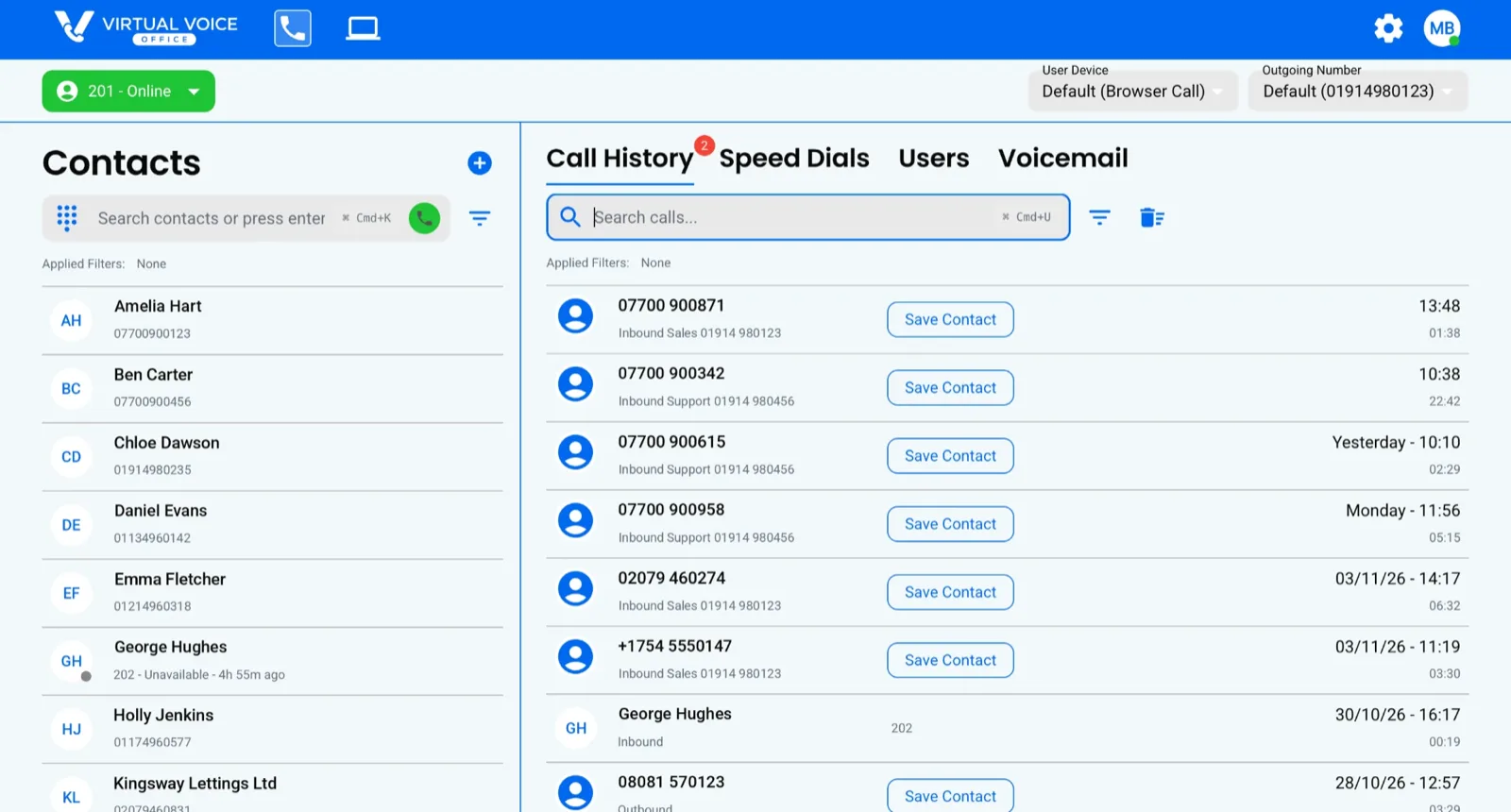
In the example above you can see the call history with each call's time and length, which of your business numbers was called, and a Save Contact button to add a caller to your contacts. Colleagues appear with their status, so you can see at a glance who is available.
Setting up is done for you. Our team switches the browser phone on for each person, and when it is ready:
- Each person gets an email, "Your new browser phone is ready", with a link and their sign in details.
- The Apps page in your portal shows a Browser phone card with an Open browser phone button.
- The How to sign in box on that page shows Browser phone ready next to the person.
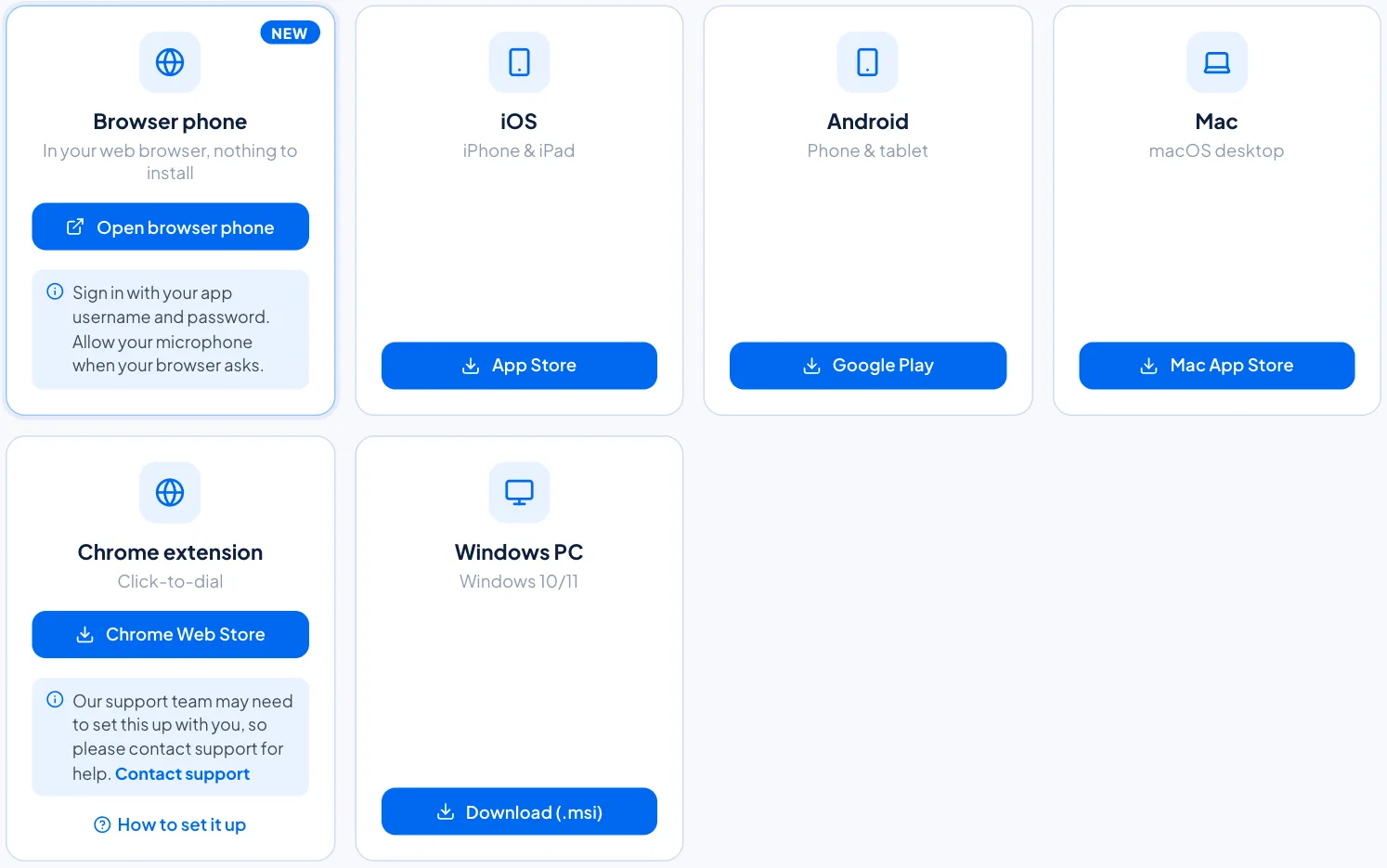
You sign in with the same username and password as our mobile and computer apps, so there is only one login to remember. If you change that password, let us know and we will update the browser phone to match. Your mobile and desktop apps keep working as normal, so each person can use whichever suits them at the time.
Office Max also includes Microsoft Teams calling and CRM click to dial, set up for you, if you would rather make calls from tools you already use. A Microsoft Teams Phone licence is needed for Teams calling, and you can read more on our integrations page.
How to get started
If your team works across shared computers, locked down laptops or more than one location, Office Max includes the browser phone as standard. On Office Line or Office Pro, just ask us to set it up. Compare plans on our business plans page, see team packages for two or more people, or request a call back and our Sunderland team will help you decide.